How to customize Level Names on Your Watch?
To better meet your customization needs, you can now customize the stress levels name for different levels on your Apple Watch.
Step 1: Ensure Your Watch App is Updated
First, make sure your StressWatch app on the watch is updated to version 1.3.2 or above.
How to check your watch app version: On the app's homepage on your watch, tap the hexagon-shaped settings icon. You’ll find the version number at the bottom.

If your mobile app has been upgraded to 1.3.2 or above and the watch app version lags behind the mobile app, wait for it to automatically update, or delete the watch app and reinstall it from the Watch app.
- Note: Due to Apple system delays, installing the watch app might be delayed, which is normal.
Step 2: Open Settings
Tap the hexagon settings icon on your watch's homepage and find "Level Names".
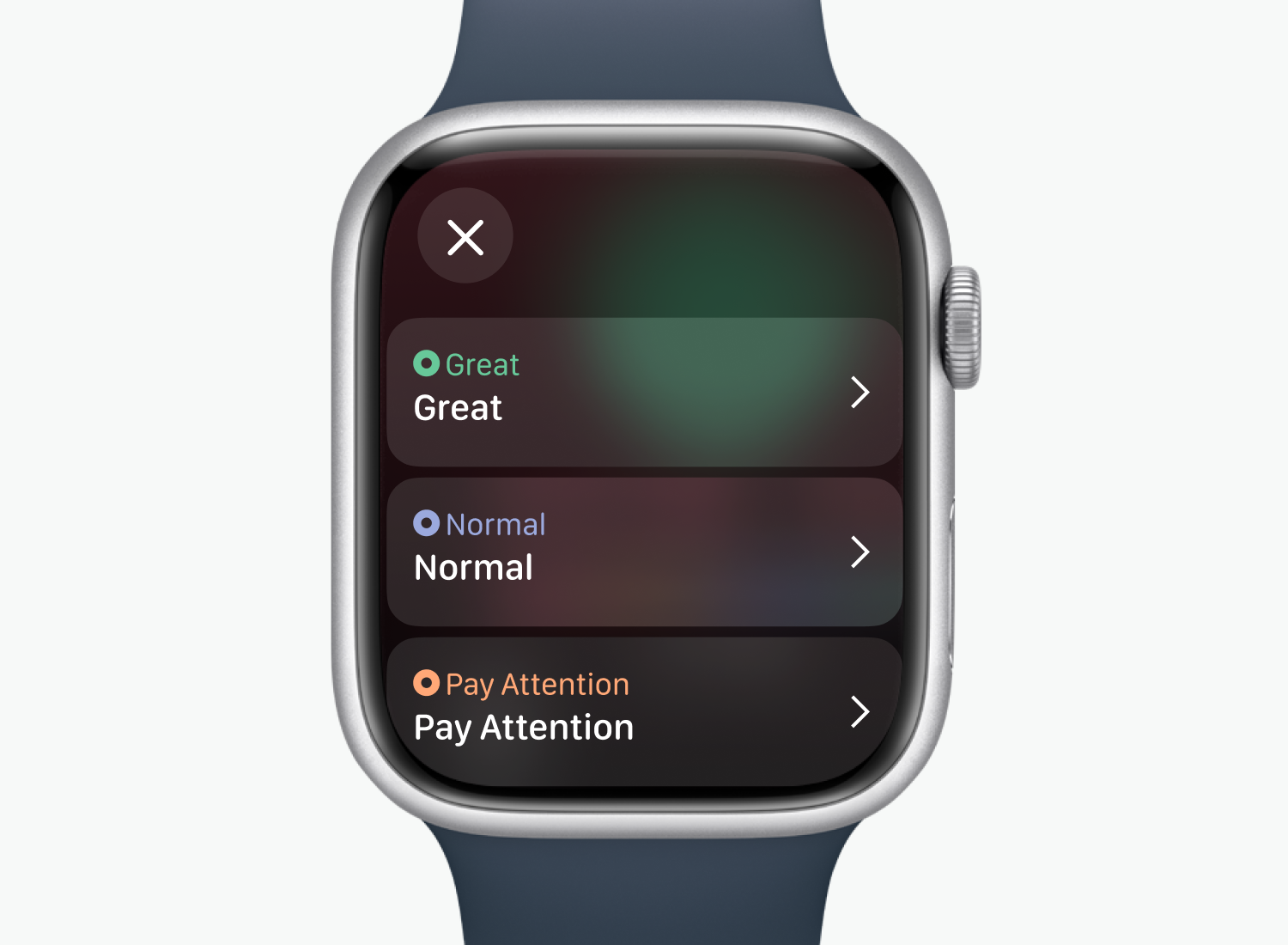
Step 3: Choose Your Preferred Naming or Define Your Own
After modification, the StressWatch app’s homepage, watch face, and notifications on your watch will update accordingly.
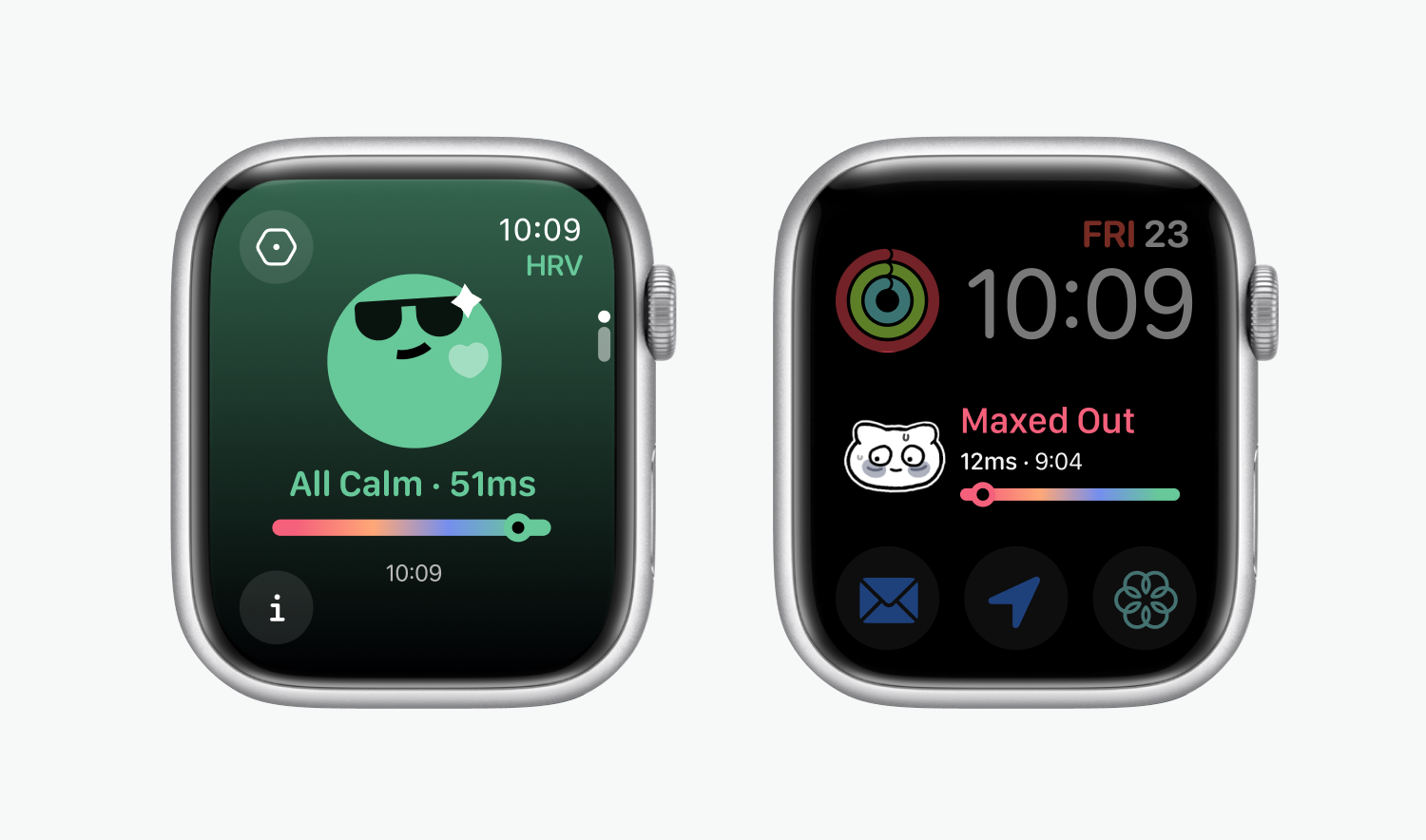
Please Note
- The free text entry feature is only supported on devices running watchOS 9 and 10.
- If it's difficult to input text on a small screen watch, you can open your iPhone while inputting. A notification for "Apple Watch Keyboard Input" will appear in the iPhone's notification bar, allowing you to input text more conveniently.
- The input text supports up to 8 full-width characters or 16 half-width characters. Exceeding this limit will result in truncated text.
- The functional status phrases in the mobile app and on the watch cannot be changed at this time; currently, only the watch app’s homepage, watch face widgets, and notifications support this feature.